> For the complete documentation index, see [llms.txt](https://docs.zonwizard.com/llms.txt). Markdown versions of documentation pages are available by appending `.md` to page URLs; this page is available as [Markdown](https://docs.zonwizard.com/inventory/suppliers.md).
# Suppliers
### Supplier Master Data
Path: [**Inventory → Suppliers**](https://app.zonwizard.com/analytics/supplier/list/)
The **Suppliers** section allows you to manage your supplier records and associate the products you purchase with each of them.
Correctly matching products to suppliers is essential because:
* It allows for the **automatic creation of purchase orders**
* It allows for the correct calculation of quantities, prices, and procurement times
**Suppliers list**
The supplier list shows the main information of each supplier:
* **Name:** Supplier's name
* **Products:** Preview of products associated with the supplier.
* **Country:** Supplier's country of origin.
* **Address:** Full address of the supplier.
* **Contacts:** Email, phone number and contact person.
* **Actions**
* **Edit**: to update supplier information
* **Archive**: to make the supplier invisible in the list
***
### Add a supplier
Path: [**Inventory → Suppliers**](https://app.zonwizard.com/analytics/supplier/list/)
1. Click on the “+” button at the top right
2. A modal will open where you can enter the supplier information
**Required fields**
* **Name**
* **Currency**
* **Country**
* **Address**
* **Email**
* **Phone number**
* **Contact person**
* **Notes**
* **Own manufacturer**: If you are a manufacturing company, you can create a new supplier by reporting it as an internal production department. This then allows you to generate production orders separate from standard replenishment orders, with delivery times, quantities and statuses designed for those producing your own products.
Once saved, the supplier will be available for product association.
***
### Editing a supplier
To edit a supplier's information:
1. Locate the supplier in the list
2. Click **Edit** in the **Actions** column
3. Update the desired information and save
***
### Archive a supplier
It is not possible to permanently delete a supplier.
To remove it from the list:
1. Click **Archive** in the **Actions** column.
2. The supplier will be hidden, but historical data will remain available.
***
### Associate products with a supplier
Path: **Inventory → Suppliers → Supplier Details**
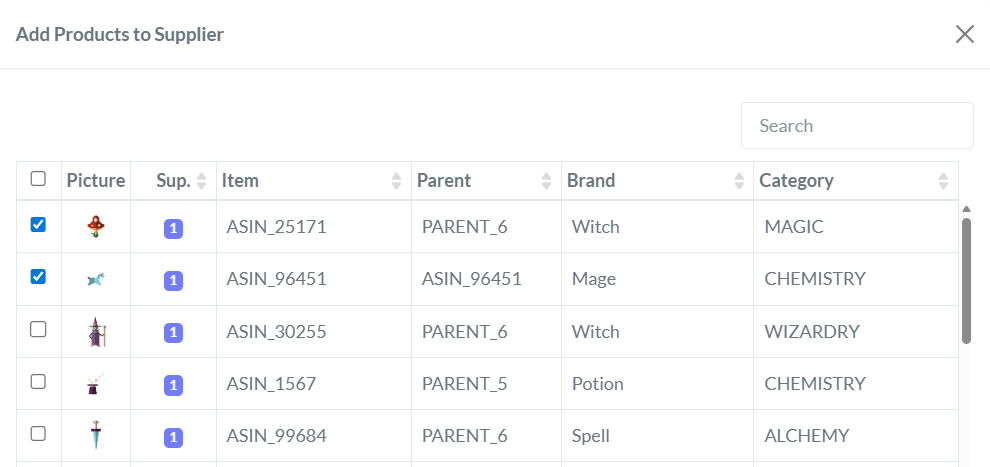
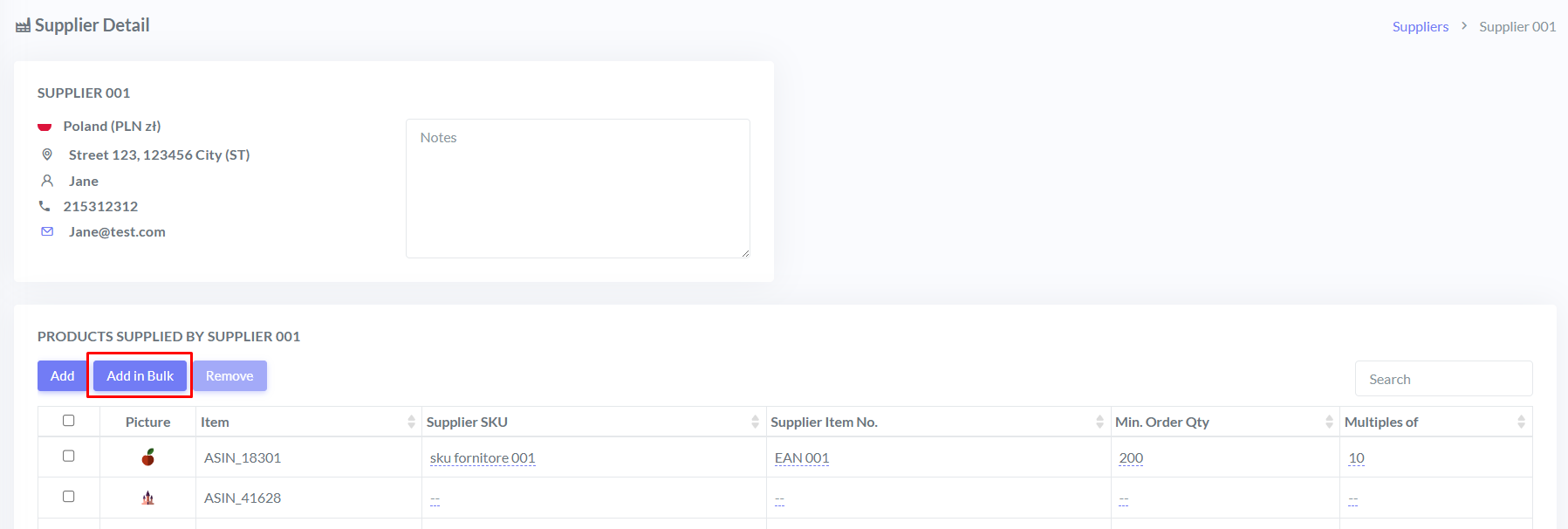
Within a supplier's detail page, you can associate the products you purchase from them.
There are **two ways to associate them**:
#### Manual addition
You can enter product information directly by filling in the required fields.
#### Adding via Excel template
You can upload a pre-populated Excel file with product data to associate with the supplier, useful for bulk insertions.
#### Product-Supplier Information
For each product associated with a supplier, you can specify:
* **Supplier SKU**: Code or description used by the supplier (*e.g., "Red Shirt XL"*)
* **Supplier Product ID**: Product identifier at the supplier (*e.g., EAN or item code*)
* **Minimum Order Quantity**: Minimum number of units that can be purchased per order
* **Multiple Quantity**: Mandatory quantity increments (*e.g., minimum 100 pieces in multiples of 10*)
This information is used automatically when **creating purchase orders**, both manually and automatically.