> For the complete documentation index, see [llms.txt](https://docs.zonwizard.com/llms.txt). Markdown versions of documentation pages are available by appending `.md` to page URLs; this page is available as [Markdown](https://docs.zonwizard.com/inventory/purchase-orders.md).
# Purchase Orders
The **Purchase Orders** section allows you to create, monitor, and manage supplier orders, following their entire lifecycle: from requesting a quote to receiving the goods.
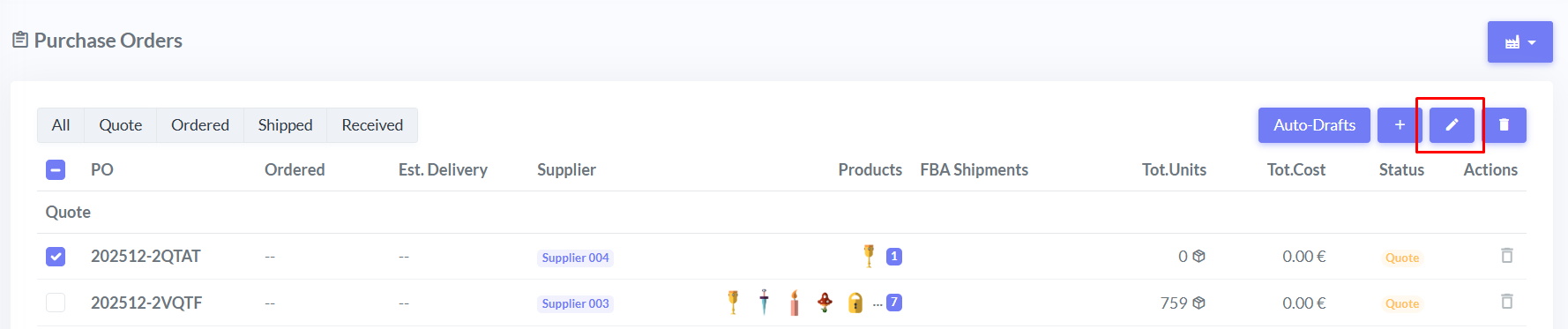
This view displays a list of all purchase orders and their progress.
#### Available Columns
* **PO**\
Internal identification number assigned to the purchase order.
* **Ordered**\
Order confirmation date. This field is automatically populated upon confirmation.
* **Estimated Delivery**\
Expected delivery date. This field is automatically populated when the order is marked as shipped.
* **Supplier**\
Name of the supplier associated with the order.
* **Products**\
List of products included in the order.\
A warning icon indicates if one or more products are already present in another order from a different supplier that has not yet been confirmed.
* **FBA Shipments**\
Identification number of any FBA shipments associated with the order.
* **Tot. Units**\
Total number of units included in the purchase order.
* **Total Cost**\
Total order amount, calculated based on product quantities and prices.
* **Status**\
Order's operational status:
* Quote
* Ordered
* Shipped
* Received
This field allows you to easily track the progress of each order.\
Actions
* **Actions**\
Allows you to perform quick actions on the order (e.g., delete using the trash can icon).
Orders are automatically grouped by status (Quote, Ordered, Shipped, Received) for easy reference.
***
## Filters
### Quick filters
From the top bar you can quickly filter orders by status or other available categories.
### Filter by supplier
At the top right of the page you can filter orders by supplier.
***
## Creating purchase orders
With ZonWizard, you can create purchase orders **automatically or manually.**
Suggested quantities are calculated based on:
* sales velocity
* maximum days of inventory
* minimum order quantity
* incremental multiples (if set)
### Automatically create purchase orders
Path: [**Inventory >> Purchase orders**](https://app.zonwizard.com/analytics/supplier-order/list/)
1. Click the **Automatic Drafts** button
2. ZonWizard automatically identifies all products that are running low
3. Separate purchase orders are created for each supplier
### Manually creating purchase orders (for a single supplier)
Path: [**Inventory >> Purchase Orders**](https://app.zonwizard.com/analytics/supplier-order/list/)
1. Click the **“+” button**
2. Select the supplier
3. Choose whether to pre-fill the **order with low-stock products**
* If you check the box, the order will automatically be filled with that supplier's low-stock products
* If you don't check the box, you can add products manually
{% hint style="info" %}
**Note**\
You can also create a purchase order from the [**Inventory >> Overview**](https://app.zonwizard.com/analytics/p-inventory/) section by selecting the products from the list
{% endhint %}
***
## Purchase order management
Path: [**Inventory >> Purchase Orders >> Order details**](https://app.zonwizard.com/analytics/supplier-order/)
Once you've created an order, you can manage its various operational phases:
* Quote
* Ordered
* Shipped
* Received
### Quote
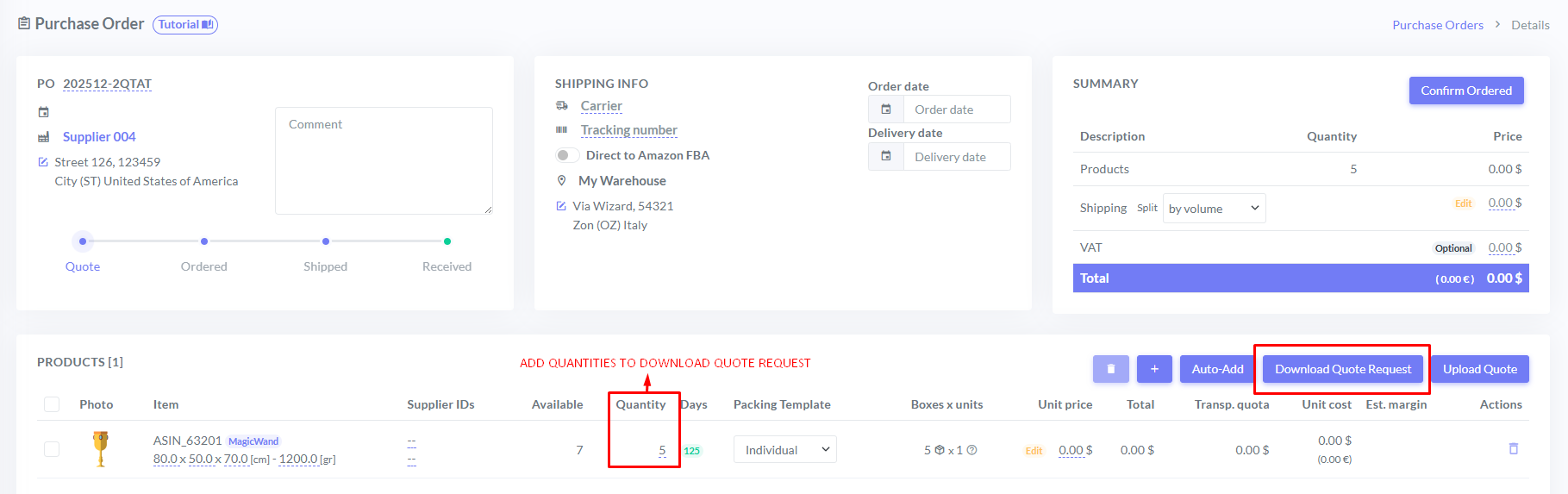
During the **quote** process, you can freely modify your order before confirming it.
At this stage, you can:
* add or remove products
* define the quantities to order
* specify the type of packaging
* download the Excel file for the quote request
The Excel file contains all the information needed for communication with the supplier and can then be reloaded into the system.
#### **Campi presenti per ogni prodotto**
* **ASIN** – Amazon ID Code
* **Photo**
* **Supplier SKU** – Product code used by the supplier
* **Supplier Item Number** – Generally the EAN code
* **SKU interno** – Is present
* **Quantity to order**
* **Units per box**
* **Total number of boxes**
* **Last Price** – Last purchase price from the supplier
* **Price** – Current purchase price
* **Currency** – Order currency
#### **Uploading a Supplier Quote**
Once you receive the quote:
1. Upload the same **Excel file**, filled in with:
* updated prices
* shipping costs
* transport cost breakdown (by volume, weight, price, or quantity)
2. View a preview of **estimated margins by marketplace**
3. If the information is correct, **accept the quote** to proceed to the next step
***
### Ordered
At this stage:
* Low-stock alerts are deactivated
* The products are already ordered
When the supplier confirms the shipment, click **Confirm Shipped**.
***
### Shipped
At this stage you can:
* Associate a **tracking number** with the shipment.
When you receive the goods, click **Confirm Received**.
***
### Received
The order is finalized.\
The product quantities in the internal warehouse are automatically increased based on the order received.
***
## Change the status of a purchase order
1. Select the order from the list
2. Click the **Edit** icon
3. Select the new status:
* Ordered
* Shipped
* Received
4. Confirm by clicking **Update**